
Whether it’s for precision measurement and parts alignment or its cloud-to-CAD analysis capabilities, FARO’s BuildIT software suite is a versatile tool helping its users do their jobs better and get to ‘that’s it,’ faster. Now, they can complete their project review/operational tasks with as little manual intervention as possible – an invaluable capability thanks to BuildIT’s coding-free automation workflow.
Within the BuildIT platform (which includes 3 products: BuildIT Metrology, BuildIT Projector and BuildIT Construction), automation is by far its greatest strength. Its modular approach makes it uniquely flexible, allowing multiple levels of automated solutions, all depending on user need.
Here is an example of how a laser scan analysis workflow can be automated:
- Step 1: Record and Play – Start recording in the easy-to-use software interface where all commands and parameters are documented, similar to macros in Microsoft Office. In the Automation Process Editor, users can view the sequence, review the saved parameters of each command and modify the sequence by dragging and dropping.
- Step 2: Perform the workflow
- Scan - one or multiple point clouds with the FARO Focus laser scanner.
- Point cloud clean up– Apply the software’s point cloud editing tools. Point editing can be fully automated by leveraging BuildIT’s cloud filtering and clipping commands.
- Align point cloud to CAD– The point cloud to the CAD: As soon as the scan is aligned, annotations are automatically evaluated.
- Extract features – Next, extract the features defined in the model as BuildIT evaluates the tolerances automatically.
- Generate your report – Automated processes can use pre-populated outlines containing views, analyses, annotations, and more. Saving the outline in the BuildIT file is a recommended best practice.
- Step 3: Save the recorded automated process – And play it back in a single click! Under the process tab, users will note those actions have been recorded as individual steps that can be played back.
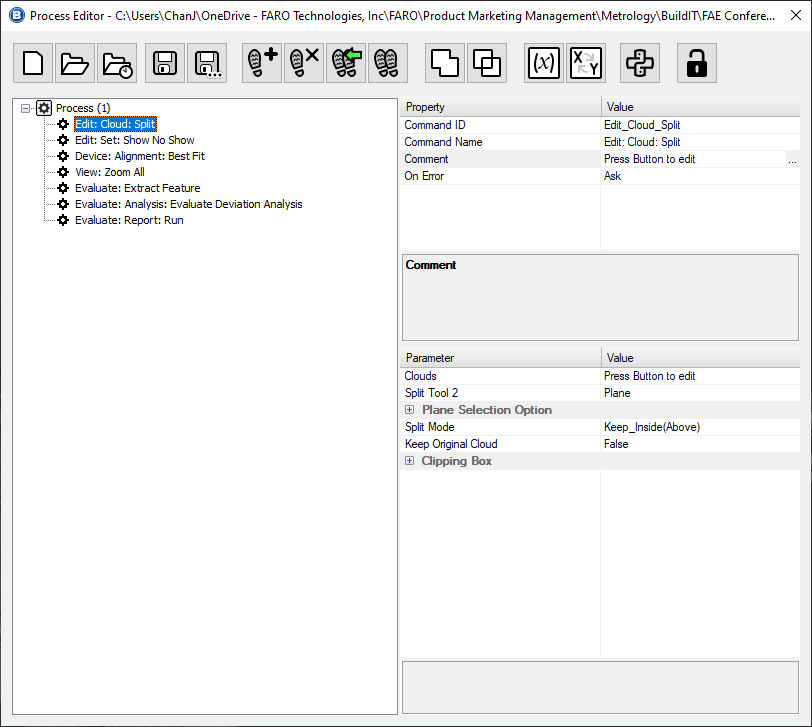
The default output is a PDF report but the process could also be edited so that the analysis values are sent to a spreadsheet, a PLC, or a database as part of a more complex automated system.
For more advanced workflows, Python scripting is possible, which is especially beneficial given its mass-market popularity thanks to simplified syntax and an emphasis on natural language. This allows fast and easy ramp up and no need to learn a proprietary scripting language. What’s more, auto-complete and syntax highlighting are now available in the process editor to streamline writing automated processes. Tooltips can also be displayed for providing documentation on the fly.
Best of all is that these scripts can be directly embedded in the automation sequence. BuildIT features a remote procedure call (RPC) server allowing easy communication with external applications. Examples include: robots, PLC, conveyor belts and rotary tables. Unwrapping cylinder shaped point clouds and triggering scans from multiple Focus Scanners at the same time can also be initiated automatically. Additional information on the RPC server can be found here.
So whether it’s automating aspects of a scan analysis via the step-by-step process listed above, or it’s automating component elements of the physical scan itself, with all these possibilities, users can tailor this solution to their needs, at the level they are most comfortable with.
With these latest updates and improvements, you could call BuildIT 2021, an ‘automatic’ success!